Every week we visit homes across the Gold Coast and find a pretty consistent setup: a Windows laptop running slower than it should, Norton or McAfee installed and auto-renewing every year, and Windows Defender sitting in the background doing its best to share the load. Sometimes there's a third: the McAfee trial that came pre-loaded when the laptop was bought, the Norton subscription the owner added on top, and Defender quietly filling gaps in the background. Three tools. One job. A noticeably slower PC.
The fix is counter-intuitive: remove the paid software entirely, and trust the free one that Microsoft built directly into Windows.
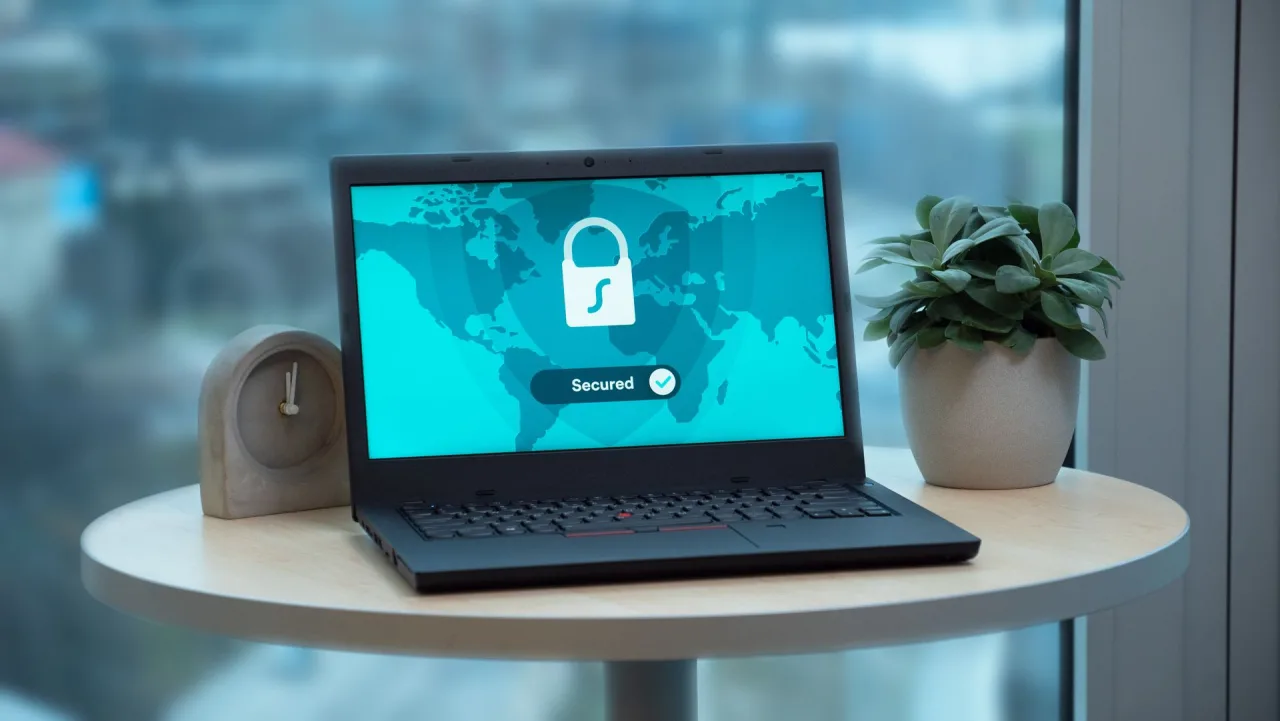
What Windows Defender Actually Does
Windows Security - which includes Windows Defender - ships with every Windows 10 and 11 PC and stays updated through the same Windows Update process that keeps the rest of your OS current. It's not a stripped-down freebie. It's a full-featured security platform that Microsoft has invested heavily in since Windows 8, and what's in Windows 11 today is genuinely excellent.
Scans files as they're opened, downloaded, or run - catching threats before they execute.
Checks suspicious files against Microsoft's global threat database in real time - updated constantly.
Controlled Folder Access blocks unauthorised programs from touching your Documents, Pictures, and Desktop. Ransomware can't encrypt what it can't reach.
Monitors inbound and outbound network traffic and integrates directly with Defender's threat detection - not a separate product.
Warns you before you open a malicious file or visit a dangerous website - works in Edge and Windows Explorer.
Prevents malicious software from disabling Windows Security through registry or system changes - Defender protects itself.
Independent lab verdict: AV-TEST - a well-respected, independent security testing organisation - consistently awards Microsoft Defender near-perfect scores. In recent tests, Defender blocked 99.9% of zero-day attacks. The same result as Norton. The same result as McAfee. Free, with no background on your taskbar nagging you to upgrade.
Why Third-Party Antivirus Is a Money Trap
Norton, McAfee, and Trend Micro aren't scams. Their products detect viruses. The problem is the business model - and what they install on your computer to fund it.
These companies spend enormous amounts on marketing and retail distribution. That $79 box at JB Hi-Fi or Harvey Norman has margins built in for the retailer, the distributor, and the software company. You're paying a premium for packaging and the anxiety that comes from not knowing Windows already handles this for free.
The subscription model is where it really stings. Buy the software, get 12 months - then it auto-renews, often at a higher rate than you originally paid. Norton and McAfee are both aggressive about this. You might have started at $49/year and be paying $109/year two renewals later without noticing. Cancel and they'll email you repeatedly about how your PC is now "at risk."
And the upsell is relentless. Once you're in the ecosystem, you'll be nudged constantly to upgrade to a bundle that includes a VPN, a password manager, dark web monitoring, cloud backup, parental controls, and identity theft insurance - all things that either have free alternatives built into Windows, or that most home users simply don't need packaged together at $14.99 a month.
The Three-Antivirus Disaster
Here's something we see on laptops bought from retail stores more often than you'd think:
- McAfee or Norton comes pre-installed as a 30-day trial - bundled by the manufacturer as part of a commercial deal
- The owner lets the trial expire, or unknowingly buys a separate Norton subscription from another retailer, installing a second copy
- Windows Defender activates in the background to fill the gap - or was never fully turned off when the third-party tool was installed
You now have two or three security products running simultaneously, all intercepting file access, all monitoring network traffic, all competing for CPU and RAM. The result is a computer that takes three minutes to fully boot, stutters opening a browser, and feels far slower than its specs should allow.
Norton in particular is notorious for the number of background processes it runs. On a mid-range laptop, Norton can be responsible for 15–20 processes at startup, consuming hundreds of megabytes of RAM before you've opened a single app. When two products like this compete with each other - and with Defender - performance tanks fast.
The Counter-Intuitive Fix: Remove It All
The fix: Uninstall every third-party antivirus tool. Give Windows Defender full, uncontested control of your PC. Security software doesn't stack - two antivirus programs don't give you twice the protection. They give you conflicts, performance hits, and one of them inevitably being misconfigured or half-disabled.
Windows Defender, when given full control of a Windows 10 or 11 machine, runs with minimal overhead. It integrates at a kernel level that third-party tools can't match - meaning it can protect more with less resource usage. Remove the bloat and most people notice an immediate improvement in how their PC feels. Faster boot times, snappier performance, and no more popup windows asking you to buy a VPN you didn't ask for.
Windows Defender vs Paid Antivirus: Side by Side
| Feature | Windows Defender | Norton / McAfee / Trend Micro |
|---|---|---|
| Cost | Free - built in | $60–$130/year subscription |
| Real-time virus & malware protection | ✓ Full | ✓ Full |
| Independent lab protection score (AV-TEST) | 99.9% | 99.9% |
| Performance impact | Minimal | Noticeable - often significant |
| Ransomware protection | ✓ Controlled Folder Access | ✓ Varies by product |
| Firewall | ✓ Native Windows Firewall | Sometimes conflicts with or duplicates Windows Firewall |
| Updates via Windows Update | ✓ Automatic | Requires separate update process |
| Pre-installed on Windows 10/11 | ✓ Always | Often bundled as a trial by retailers/manufacturers |
| Upsell popups & nag screens | None | Frequent |
| Risk of conflicting with other AV tools | N/A | High if multiple tools are installed |
| Subscription renewal required | No | Yes - auto-renews, often at a higher price |
How to Clean Up Your PC in 10 Minutes
Follow these steps and you're done. Print the checklist at the top of this page if you want to work through it at your desk.
Uninstall your third-party antivirus
Open Settings → Apps → Installed apps. Search for Norton, McAfee, Trend Micro, AVG, or Avast. Click the three dots next to the entry and choose Uninstall.
Important: For Norton, use the official Norton Remove & Reinstall (NRnR) tool from Norton's support site after uninstalling - a standard uninstall often leaves background services behind. McAfee has an equivalent called the MCPR tool. Both are free to download from their respective websites.
Restart your PC
A full restart ensures the uninstalled software's processes are cleared and Windows can re-initialise Defender cleanly. Don't skip this step.
Confirm Windows Defender is active
Go to Settings → Privacy & Security → Windows Security → Virus & threat protection. You should see "Virus & threat protection is on" with a green tick. Also confirm Tamper Protection is toggled on - this prevents other software from disabling Defender.
Run a Quick Scan
On the same Virus & threat protection screen, click Quick scan. It'll take a few minutes. Ideally it comes back clean - but if it finds anything, let Defender handle it.
Check Windows Firewall is active
Go to Windows Security → Firewall & network protection. All three network profiles - Domain, Private, and Public - should show as On. If a third-party firewall from your previous antivirus suite disabled Windows Firewall, toggle them back on here.
Run Windows Update
Go to Settings → Windows Update → Check for updates and install anything pending. Defender's virus definitions update automatically through Windows Update - keeping Windows current is the same as keeping your antivirus current.
How Well Protected Are You, Really?
Running Windows 10 or 11, keeping Windows Update on, and using Windows Defender gives you - for free - real-time antivirus and anti-malware, ransomware protection via Controlled Folder Access, a fully integrated network firewall, SmartScreen filtering for dangerous websites and files, and Microsoft's global cloud threat intelligence updated daily.
That combination is more than enough for the average home user. The independent lab scores confirm it. And removing the third-party bloat will almost certainly make your PC feel meaningfully faster. We've seen boot times drop from three minutes to under a minute just from uninstalling Norton and cleaning up the startup processes it leaves behind.
Norton, McAfee, and Trend Micro do detect viruses - we're not saying they don't work. But for most Australian households on Windows 10 or 11, they represent an unnecessary annual expense that reduces performance in exchange for no meaningful improvement in protection over what you already have.
Security Is More About Behaviour Than Software
Here's the part that the antivirus companies don't want to talk about: the biggest threat to your digital life isn't a virus slipping past your security software. It's a scammer calling you on the phone, or a convincing-looking email asking you to click a link.
No antivirus - paid or free - can protect you from handing over your bank details to someone pretending to be from the ATO. It can't stop you from clicking a link in an SMS that looks like it's from Australia Post. The most important security layer is knowing how to spot these attempts in the first place.
Worth a read: Our guide The Ultimate Scam Protection Guide for Seniors covers the most common scams targeting Australians - phone scams, phishing emails, investment fraud - and exactly what to do if something feels off. Useful for everyone, not just seniors.
Want Us to Check Your PC Is Properly Set Up?
hugmypc can perform a full security and performance health check remotely - no need for a visit. We'll check what antivirus software is installed, remove any conflicting tools, confirm Windows Defender and Windows Firewall are running correctly, run a scan, and make sure your Windows updates are current. We'll also check startup programs, identify any obvious performance bottlenecks, and leave your PC running as it should.
Fixed hourly rate, no call-out fee. Call 07 3522 2896 or book online. Most remote health checks are done within an hour.